



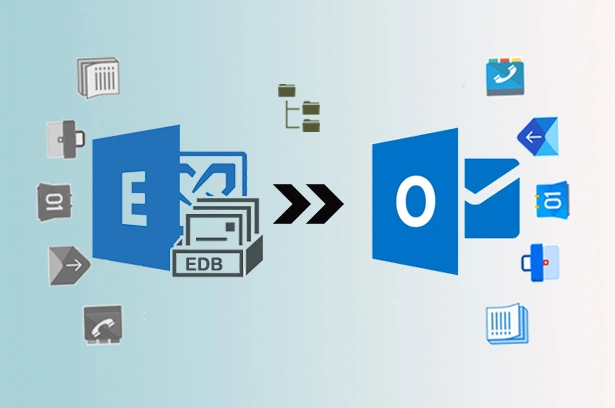
Admins export Exchange mailboxes to PST files to serve various purposes, such as back-up mailbox, extract data from offline EDB files, archiving, or for compliance needs. To perform the export for any of these or other reasons, Exchange provides the facility of the PowerShell command New-MailboxExportRequest. This command allows the mailbox export from Exchange Server to PST files.
In several instances, this PowerShell command may fail to perform due to several errors. In this blog, we will discuss these errors and find the solutions to these issues. Additionally, we will also talk about the role of Stellar Converter for EDB, the professional EDB to PST converter software, in ensuring hassle-free export of mailboxes from EDB to PST.
Error#1: New-MailboxExportRequest Couldn’t connect to the source mailbox
Problem
When exporting Exchange mailboxes to Outlook PST using the New-MailboxExportRequest cmdlet, you may get the following error message, which is a part of a larger message.
Couldn’t connect to the source mailbox. MapiExceptionProtocolDisabled. Unable to make connection to the server.
This error indicates disabled MAPI access for the mailbox, which prevents Exchange from establishing the requisite connection for carrying out the export.
Resolution
To resolve the MapiExceptionProtocolDisabled error, proceed with the following steps in the Exchange Admin Center (EAC):
- Open the Exchange Admin Center with your login credentials
- Navigate to Recipient > Mailboxes > select the user > Mailbox features
- Verify if MAPI status is ‘Enabled’ by default
- If disabled, set it to ‘Enabled
- Alternatively, you may switch to the Exchange Management Shell (EMS) environment for the task:
- Use the below PowerShell command to verify if the MAPI is set to enabled:
Get-CASMailbox MailboxName | FL mapienabled
- To enable MAPI for your mailbox, run the command below:
Set-CASMailbox MailboxName -mapienabled:$true
- Restart the Mailbox Replication Service
Restart-Service MSExchangeMailboxReplication
This PowerShell cmdlet helps to stop the Mailbox Replication Service (MRS) and then immediately restart it.
- Re-run the export cmdlet:
New-MailboxExportRequest–Mailbox USERID– FilePath \\SERVERNAME\ SHAREPATH\name.pst
Error#2: Access Denied on New-MailboxExportRequest
Problem
When exporting multiple mailboxes in Exchange Server, the New-MailboxExportRequest cmdlet works for most of the mailboxes but fails for some of them (around 10% requests). The error shows the inability of the system to access the file. In reality, the system never creates the file. The problem occurs in spite of the Exchange Trusted Subsystem and the user account having complete access to the UNC path.
Resolution
Since the user can export a bulk of mailboxes, there is no issue with the Exchange Server permission. Following these steps may help the cause:
- Use this command to check the SamAccountName for the failed mailbox
$t=(Get-Mailbox FailedMailbox).SamAccountName
- Here, SamAccountName acts as the identifier for the –Mailbox parameter, like jdoe. It will dynamically generate unique file paths for each PST user.
- Next, proceed to export data for this mailbox and find out if the export happens successfully by using the command below:
New-MailboxExportRequest -Mailbox $t -FIlePath \\EXCH\temp\$($t).pst
- A failed data export for this mailbox will indicate an issue with the mailbox itself. In such a case, migrate this mailbox to a different database. It could repair several mailbox issues.
- If the data export is a success, it will indicate a limitation on the export session. To avoid this situation, try splitting the source CSV into multiple parts and find out if you can export all mailboxes successfully.
Error#3: Couldn’t find the Enterprise Organization container
Problem
Consider you install the Exchange Server 2010 Service Pack 1 (SP1) or Exchange Server 2010 Service Pack 2 (SP2). Next, consider exporting the contents of a mailbox to a PST file by running the New-MailboxExportRequest cmdlet
This may lead to the following error:
Couldn’t find the Enterprise Organization container.
This error halts the export process and occurs if the Exchange admin’s account does not have the Mailbox Import Export role-based access control (RBAC) management role assigned.
Resolution
To deal with this issue, assign the Mailbox Import Export RBAC management role. Here is the command for the same:
New-ManagementRoleAssignment -Name “name” -SecurityGroup “security_group_name” -Role “Mailbox Import Export.”
This will hopefully resolve the situation and help to proceed with the export request successfully.
Error#4: Request timed out
Problem
You may choose to export or import a mailbox using New-MailboxExportRequest or New-MailboxImportRequest in Exchange Server 2010 with SP1 or a later version. In the process, you may encounter a large request timed out message. Here is a part of this error message.
[PS] New-MailboxExportRequest -Mailbox “<mailbox_name>” -FilePath \\<server_name>\<share>\<file_name>.pst
The call to “net.tcp://<server_name>/Microsoft.Exchange.MailboxReplicationService <server_name> (14.1.218.11 caps:07)” timed out.
This error occurs when you set up a client access array and use an incorrectly configured load balancer.
Resolution
You should ensure that the Exchange servers can connect to the load balancer as clients. In addition, follow the steps below to allow the submission of a move request. These steps will help if the connectivity of the client from the Exchange servers to the load servers is disabled or not possible.
1. Change the value of RPCClientAccessServer
In a dynamic setting, you can modify the RPCClientAccessServer value on the database that includes the mailbox, which you wish to import or export, instead of pointing to the CAS array that uses the load balancer. Considering the dynamic nature, you may change this setting later.
2. Use the MRSServer switch
Use the -MRSServer switch in the New-MailboxExportRequest and specify a CAS server, which is not a part of the CAS array
3. Add host file entry
Add an entry to the host files on one or multiple CAS servers so that it changes the name of the CAS array to the localhost.
Resolving the Errors using professional EDB to PST converter software
Dealing with the errors encountered while using the New-MailboxExportRequest could consume a lot of time, and the result may not be favorable. A better method to avoid such errors is to use professional EDB to PST converter software.
The Stellar Converter for EDB tool is a widely recommended one in this regard. The software is ideal in circumstances where you need to Export an Exchange mailbox to PST. Here are some of its key features:
- Converts EDB files to multiple formats, such as PST, EML, MSG, RTF, EDF, or HTML
- Exports EDB files to Live Exchange or Office 365
- Splits the ‘scan and preview’ process from the ‘saving’ process without repeated scanning
- The Stellar Converter for EDB tool selects and saves the Public Folders into the PST file format
- Export Exchange contacts to CSV
Conclusion
Admins use the New-MailboxExportRequest in the Exchange Server database to export files to PST and other formats for various reasons. While running the command, you may come across several errors, which halt the mailbox export until you find a satisfactory resolution.
Prominent of these errors include Couldn’t connect to the source mailbox, Access Denied, the Enterprise Organization container, and Request timed out. Admins use suitable methods to resolve these errors, but they often take too much time and are not that effective.
Trying professional EDB to PST converter software, such as Stellar Converter for EDB, is a suitable option in this context. The widely recommended tool allows quick and hassle-free conversion of Exchange Server mailboxes to PST files.